sphinxcontrib-lightbox2
Sphinx extension to add lightbox2 to each figure and image added in HTML.
Read the documentation on ReadTheDocs!
Usually Sphinx themes limit their content width to a limit to improve readability. This creates a problem for large images and diagrams which might be needed in technical documentation.
Installation
Install the package using
pip install sphinxcontrib-lightbox2
Add sphinxcontrib.lightbox2 to the list of extensions in your conf.py:
extensions = ["sphinxcontrib.lightbox2"]
Configuration
Lightbox2 offers different configuration options.
These options are exposed in sphinxcontrib-lightbox2 through options in the conf.py.
See the mapping of lightbox2 options to Sphinx options
Lightbox2 Option Name |
Sphinx Option Name |
Default Value |
|---|---|---|
|
|
|
|
|
|
|
|
|
|
|
|
|
|
|
|
|
|
|
|
|
|
|
|
|
|
|
|
|
|
|
|
|
|
|
|
Examples
These examples show how the lightbox2 applied to the images look. Click on any of the images to see the effect.
Figure
The following diagram is a normal figure included using the standard figure directive.
Syntax
```{figure} large-diagram.drawio.svg
Diagram with multiple components
```
.. figure:: large-diagram.drawio.svg
   Diagram with multiple components

Diagram with multiple components
Image
Use a normal image directive to add the behavior to images.
Syntax
```{image} large-diagram.drawio.svg
```
.. image:: large-diagram.drawio.svg
PlantUML Diagram
Important
The lightbox does not work with the plantuml_output_format svg_obj. All other formats are supported.
Use the uml directive from the sphinxcontrib.plantuml extension to add the effect to PlantUML diagrams.
Syntax
```{uml} sequence-chart.puml
:caption: Caption with **bold** and *italic*
```
.. uml:: sequence-chart.puml
   :caption: Caption with **bold** and *italic*
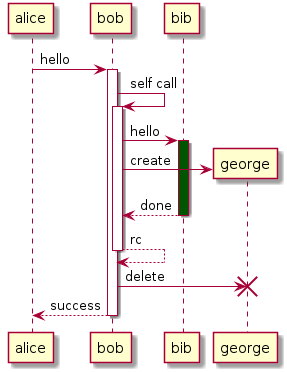
Caption with bold and italic
Mermaid Diagram
Important
The lightbox effect is only supported if mermaid_output_format is set to png.
Other formats either produce inline SVG or are handled by mermaid-js in the browser directly.
Using the mermaid_output_format png requires the mermaid-cli to be available.
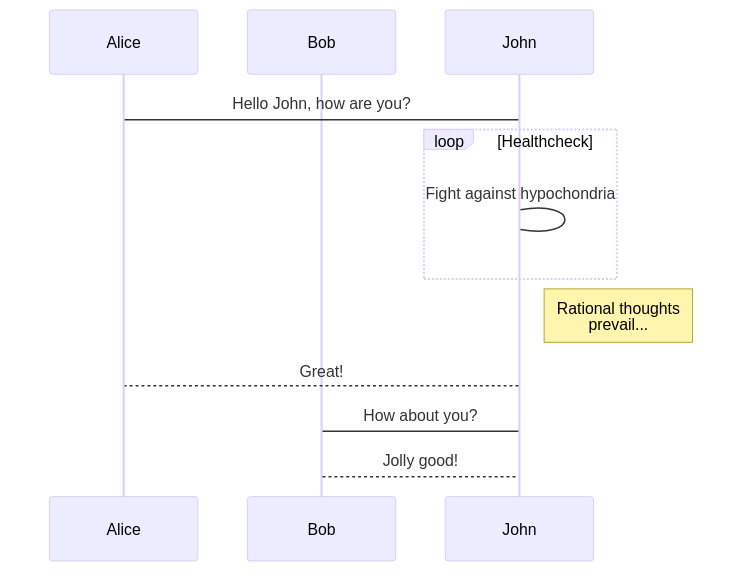
Use the mermaid directive from the sphinxcontrib.mermaid extension to add the effect to Mermaid diagrams.
Syntax
```{mermaid} sequence-chart.mmd
```
.. mermaid:: sequence-chart.mmd